- Foundation of Algebra or Pre-Algebra (School Based) or Grade 6/7 Math
- VDOE-Aligned Algebra I | Virginia Department of Education
- Algebra 2 with Analytical Geometry
- Algebra IOWA | Iowa Algebra Aptitude Test (IAAT)
- Pre-Algebra (Competition Based) or Grade 7/8 Math
- Algebra Elementary I Algebra Honors 1.5
- Algebra 2 with Trigonometry
- MOEMS- Kangaroo Training & Practice | Math Olympiads for Elementary & Middle Schools
- MathCounts Chapter & AMC 8 Concept Practice
- MathCounts State, AMC 10 Concept Practice & AIME Prep
- SOL Geometry Exam Prep – Master the Standards
- MOEMS - Kangaroo Exam Prep | Mathematical Olympiads for Elementary & Middle Schools
- MathCounts Chapter & AMC 8 -Exams
- MathCount State & AMC10 -Exams
- SOL Exam Prep – Master the Standards
- TA Elementary Division Theory - Contest Years 2001-02 to 2025-26
- TA ACSL Junior Division Theory - Contest Years 2001-02 through 2025-26
- ACSL Junior Division Coding - Contest Years 2001-02 through 2025-26
- TA Classroom Division Theory - Contest Years 2001-02 to 2025-26
- Junior Division Theory & Coding - Contest Years 2001-02 to 2025-26
- TA Intermediate Division Theory - Contest Years 2001-02 to 2025-26
- Intermediate Division Coding - Contest Years 2001-02 to 2025-26
- Intermediate Division Theory & Coding - Contest Years 2001-02 to 2025-26
- ACSL Senior Division Theory - Contest Years 2001-02 through 2025-26
- TA Senior Division Theory & Coding - Contest Years 2001-02 to 2025-26
- TA Junior Division Theory - Contest Years 2001-02 to 2023-24
Talent Academy: Live Online Math & Computer Science Classes
Talent Academy follows an amazing online learning curriculum for students of all age groups. We offer small batch sizes with dedicated experts to enhance the learning experience. We offer numerous worksheets and practice materials for students to practice during their free time. All queries can be discussed and resolved in subsequent review sessions where they get one to one dedicated discussion time. Online sessions are not like any other recorded classes but are live sessions where there is more interaction and conversation but not just a one way lecture that enables students to be attentive and increases class participation
Get introductions to algebra, geometry, trigonometry, precalculus, calculus, java, AMC 8, AMC 10, and MOEMS contest participation, free events and more. Get help with current math and computer science coursework and competitive exam preparation.
Select a course to learn more. Students can register to the schedule based on their convenience and more excitingly learn sitting at their home comfort. The only requirement is a working computer with internet access and a comfy place to attend the sessions. All the sessions are approximately one to one and a half hours which is ideal for learning students. Review sessions are arranged at different hours of the day to avoid overloading for the students. Our classroom is your training ground for the impact you can have in your career field.
Guides tailored for students, parents, and advisors.
Whether you want to purchase a course, enroll a child, track academic progress, or manage teams, the resources below will walk you through every step clearly and easily.
Course Pricing and Enrollment Information
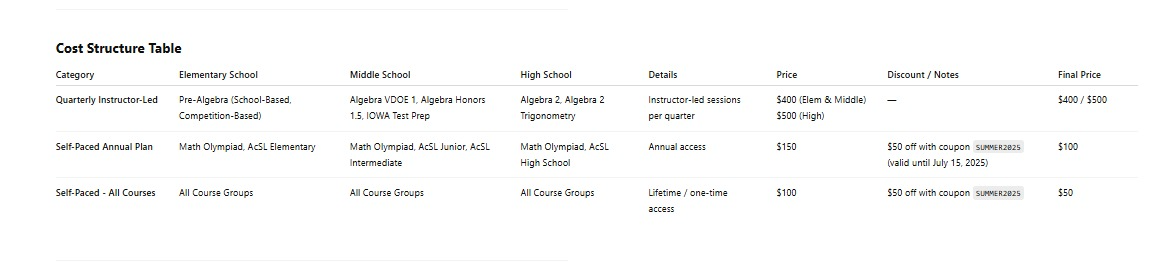
- Talent Academy Math and Computer Science Courses – Self-paced:
- Base Price: $100 (or $150 with contest access)
- Use promo code SUMMER2025 for $50 off
- Final Price: $50 (without contest) or $100 (with contest)
- Instructor-led Classes:
- Regular Price: $400/quarter
- New Customer Offer (July–September): $350 after $50 discount
- Referral Bonus: Existing customers get an additional $50 off
- For English language courses, visit: https://vilacademy.org/